Maximize Your Northern Lights Viewing: Best Samsung Galaxy Settings
Nestled among the captivating phenomena of the natural world lie the auroras, among which the Northern Lights hold a special allure. For Samsung users eager to capture this electric dance in the skies, understanding your camera's settings is key. Let's delve into the optimal settings for your Northern Lights photography with your Samsung device.
The Northern Lights, or Aurora Borealis, are a mesmerizing sight that can leave you in awe. To immortalize these ethereal moments, you'll need to master your Samsung camera's settings. This guide will help you capture the vivacious hues and dynamic movements of the Northern Lights like a pro.
Understanding Your Samsung Camera Settings
Before venturing into the great outdoors, familiarize yourself with the fundamental settings on your Samsung device. These include ISO, shutter speed, and aperture. Each plays a crucial role in determining the final output of your Northern Lights photos.


While Samsung phones boast impressive cameras, they may not excel in low-light conditions like a dedicated DSLR or mirrorless camera. However, with the right know-how, your Samsung device can still yield stunning results.
Mastering ISO for Night Photography
ISO refers to your camera's sensitivity to light. In low-light scenarios like the Northern Lights, you'll need to increase the ISO to maintain a decent shutter speed. Remember, higher ISO values amplify image noise, so strike a balance between brightness and clarity.


On a Samsung Galaxy S21, for instance, start with an ISO of 800 and adjust according to the light conditions. If the scene is too dark, you may need to push the ISO up to 1600 or even higher. Conversely, in a slightly brighter setting, you can dial down the ISO to retain as much detail as possible.
Balancing Shutter Speed for Motion
Shutter speed dictates how long your camera's sensor is exposed to light. For the Northern Lights, where motion is a key factor, experiment with various shutter speeds to capture streaks, arcs, or even moving patterns.
A general starting point is around 15-30 seconds, depending on your device's capability. Shorter shutter speeds can freeze the action, while longer ones will result in more intense light trails and stronger colors. On Samsung devices, use the Pro or Night mode to manually adjust shutter speed.


Optimizing Your Samsung Camera for Night Photography
Certain camera modes and features on Samsung devices can enhance your night photography experience and the quality of your Northern Lights images.
For example, Night mode combines multiple images to decrease noise and increase clarity. In Pro mode, you have full control over settings like ISO, shutter speed, and white balance. Additionally, enabling RAW shooting (available on some models) lets you capture all the details and allows for further editing flexibility.
Harnessing the Power of White Balance
White balance adjusts the colors in your photo to reflect what your eyes see. As the Northern Lights spans a spectrum of colors, it can trick your camera into thinking the scene is cooler (bluer) or warmer ( yellower) than reality. Manually adjusting the white balance can help you achieve more accurate and striking colors.


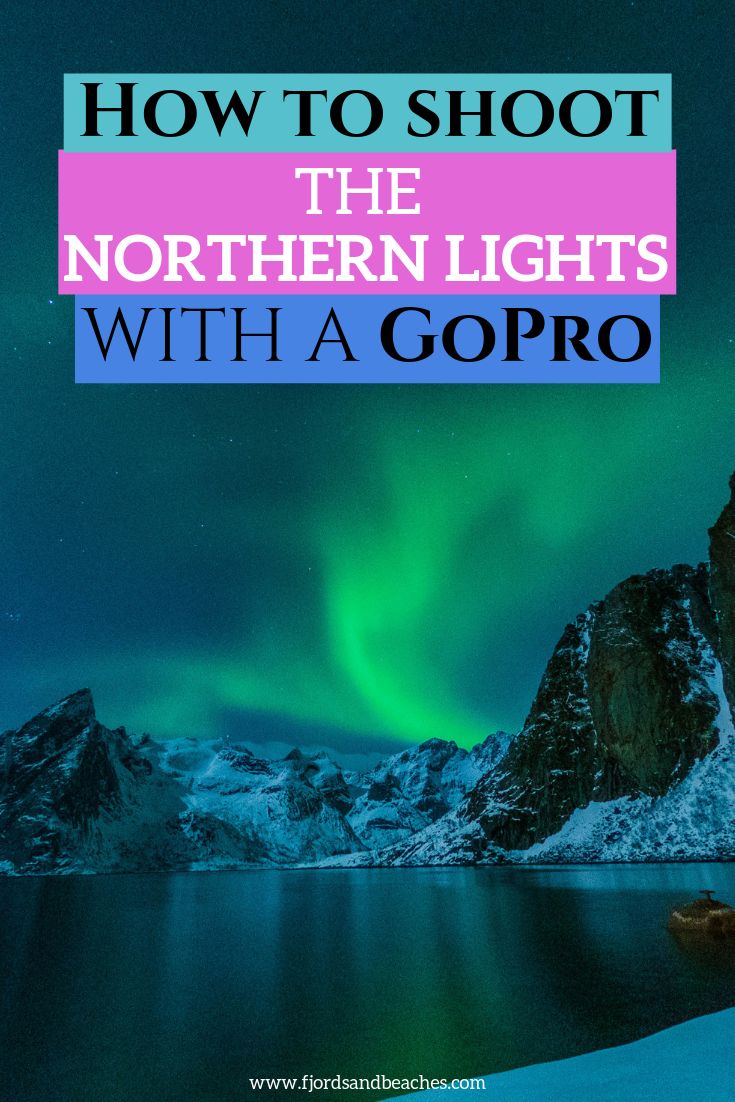


Start with the 'Candles' or ' Tungsten' preset on your Samsung device, as these settings can emit rich, warm tints that complement the cool green and purple hues of the Aurora. You may also experiment with the 'Fluorescent' setting to capture those vivid greens.
Stabilizing Your Samsung Device for Sharp Images
Shooting in low-light situations with a slow shutter speed can lead to camera shake and blurry images. Ensure you're using a tripod or a stable surface to minimize movement and maintain sharpness in your photos.
On some Samsung models, enabling 'Steady Shot' or using the built-in stabilizers can help combat camera shake. However, for optimal results, we recommend a sturdy tripod and ensuring your camera's lens is firmly mounted.
With these settings and techniques, you're well-prepared to capture the enchanting Northern Lights with your Samsung device. The best advice? Practice beforehand, be patient, and keep experimenting with different settings to find the perfect balance between exposure, clarity, and color. Now go forth and let your creativity shine!"
Related Articles

Samsung Smart TV: Sign Up & Maximize Your Viewing Experience
Are you the proud owner of a Samsung Smart TV, eager to unlock its full potential? Then, you've likely heard about the benefits of signing up for a Samsung...

Maximize Your Galaxy: Top Samsung Smart Switch Uses
Have you made the switch from iOS to Android, or vice versa? Samsung's Smart Switch app is designed to make this transition as seamless as possible. This...

Best Apple Watch Smart Stack Settings: Maximize Your Experience
The Apple Watch's smart stack feature allows you to stack up and interact with multiple complications on a single watch face, but have you found out how to...

Maximize Your Samsung Watch 6: Top Tips to Improve Battery Life
The Samsung Watch 6, a formidable addition to the Galaxy wearable family, offers a wealth of features, but its battery life is often a subject of concern...

Maximize Your Space: Best Cabinet Designs for Small Kitchens
Ever grappled with the challenge of crafting a functional and aesthetically pleasing kitchen in a could-be-tighter space? You're not alone. Many homeowners...

Enhance Your Viewing: Maximizing HDMI Picture Quality on Smart TVs with Optimal Backlight Settings
In the evolving landscape of home entertainment, Smart TVs have emerged as the pinnacle of convenience, integrating numerous features that enhance our viewing...