Sort Smartsheet Cards in a Flash: Mastering Card View Sorting
Streamlining project management processes involves juggling complexities, deadlines, and dependencies - a task made efficient with Smartsheet's intuitive features. One of these is the Card View, a flexible and user-friendly interface that organizes, visualizes, and manages data effectively. Today, we delve into the power of Smartsheet's Card View sorting, demystifying how it enhances your project management prowess.
Before we dive into sorting, let's first understand the compelling nature of Card View. Unlike the spreadsheet interface, Card View transforms your projects into interactive, customizable cards, mimicking a kanban board. This layout stimulates visual thinking, simplifies complexities, and expedites decision-making. Now, let's explore how sorting these cards can further optimize your workflow.
Mastering Smartsheet Card View Sorting
Sorting cards in Smartsheet is as intuitive as the interface itself. It's your secret weapon to filter data, find what you need quickly, and maintain a well-organized workspace. Here's how you can harness it.

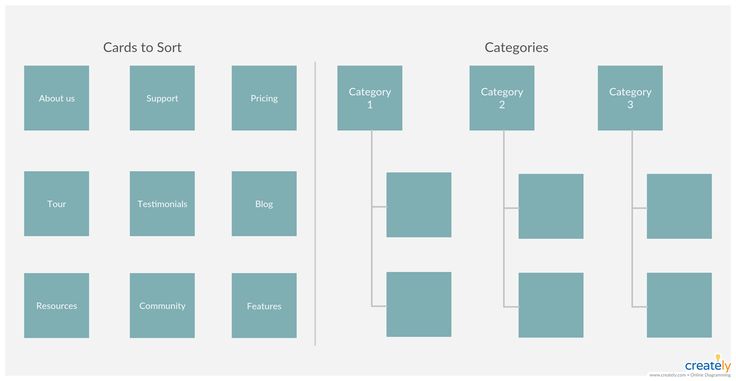

First, understand that you can sort cards by any column, be it 'Due Date', 'Status', 'Priority', or any custom field you've created. This flexibility ensures that your workflow can be adapted to your specific needs. Now, let's look at two powerful sorting techniques:
1. Basic Sorting: Ascending and Descending Order
For basic sorting, click on the column header to toggle between ascending and descending order. Numbers and dates will sort chronologically, while text fields will sort alphabetically. This simple function is extraordinarily powerful for quickly identifying overdue tasks, pending approvals, or finding specific data.


For instance, click on the 'Due Date' column header to sort tasks from earliest to latest (ascending) or vice versa (descending). It's that easy to prioritize your workload.
2. Multi-Column Sorting: Prioritize Your Way
Multi-column sorting takes your organization to the next level. It allows you to sort by multiple criteria, catering to your unique needs. To sort by multiple columns, simply hold down the shift key and click on additional column headers. The cards will sort by the first column and then subtly within each group by the subsequent columns.
For example, shift-click on 'Priority' and 'Due Date' to prioritize high-priority tasks first, organized by their due dates. This ensures that you tackle the most important tasks promptly.


Beyond Sorting: Grouping and Filtering for Granular Control
While sorting is a powerful tool, it's just the tip of the iceberg. Smartsheet offers grouping and filtering to further refine your workflow. Grouping consolidates cards with the same values, helping you aggregate similar tasks. Filtering, on the other hand, isolates specific cards, providing a laser focus on relevant data.
Combine these features to create a system that works just the way you need it to. For instance, group cards by 'Assigned To' to see what each team member is working on, then filter to view only the high-priority tasks.
3. Grouping: Segmenting Workloads
Grouping cards is instrumental in managing team workloads. Click on the '+' icon or right-click on a value to group cards with shared attributes. This feature sits at the heart of Smartsheet's kanban-like interface, facilitating task categorization and facilitating swift action.


Try grouping tasks by 'Status' to watch Smartsheet transform into an interactive kanban board, guiding your workflow from initiation to completion.
4. Filtering: Zooming into Relevance
Filters help you zoom into specific areas of your sheet. Click on the funnel icon at the top of a column header to filter by specific values. For instance, filter 'Due Date' to focus on tasks due this week. You can add multiple filters, creating complex queries with just a few clicks.
Once you've applied a filter, you'll notice the cards that don't meet the criteria fade into the background. This visual distinction emphasizes the significance of the filtered tasks, ensuring you stay focused on the critical tasks that matter most.
With sorting, grouping, and filtering by your side, you're equipped to manage even the most intricate projects. Smartsheet's Card View is more than just a pretty face - it's a dynamic tool that adapts to your needs, making project management a breeze. So, go ahead, tweak, adjust, and optimize your workspace for peak performance. After all, a well-managed project is a successful project.
Related Articles
Sort Smartsheet Cards by Date
Streamlining workflows in today's fast-paced business environment can be a challenge, but with the right tools, it's definitely manageable. One such tool...

SmartSheet Card View: Master Project Management Faster
Maximize your team's productivity and visibility with Smartsheet's intuitive Card View. A powerful feature that transforms your tasks into interactive cards...

Mastering Smartsheet: The Ultimate Guide
centrumSmartsheet, a powerful collaboration and work management tool, has been empowering teams and organizations worldwide to streamline their workflows and...

Mastering Smartsheet: Create Captivating Reports
Streamlining project management and tracking progress can be a challenging task, especially in large teams. However, with the right tools and techniques, you...

Mastering Smartsheet: Software Engineer Interview Questions
Embarking on a career in software engineering often involves a rigorous interview process, and when it comes to specialized tools like Smartsheet, the...

Clever Gift Card Wrapping Ideas
Looking for creative ways to present gift cards without the usual bore of a plain envelope? You're in luck! Here are some clever ideas to wrap gift cards that...